
CHANNELS

infoTECH Feature
Internet Explorer 9 Goes Live
 By
By Last week Microsoft (News  - Alert) unveiled the official, final version of Internet Explorer 9 following a healthy trial period that saw the usual beta and release candidate editions. Those of you looking to install IE 9 either on your own or for your company now have the opportunity to check out this latest upgrade. But before you take IE 9 for a spin, here are a few bits of information and advice that may help.
You’ll find IE 9 online at its own dedicated download site. You can also learn about the new features and pick up other details about the browser at this site.
By default, clicking the Download button presents you with the version of IE 9 compatible with your operating system. If you run 32-bit Windows 7 or Vista (IE 9 does not support Windows XP), the 32-bit version of IE 9 is the one made available to you. If you run 64-bit Windows 7 or Vista, Microsoft wants you to download and install the 64-bit flavor of IE 9. And the same goes for the 64-bit version of Windows Server 2008.
Even though you may run 64-bit Windows, you don’t necessarily want to run 64-bit Internet Explorer. Though 64-bit browsers sound like an improvement, they can be troublesome as they require 64-bit versions of any plugin or add-on, such as Adobe Flash. In many cases, 64-bit browser plugins either don’t yet exist or are still being tested. As a result, using a 64-bit browser can easily restrict your ability to fully surf the Web and view certain types of content.
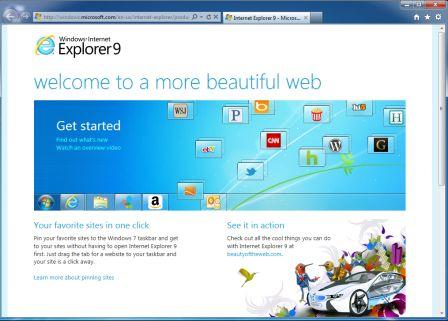 But if you specifically download and select the 32-bit version of IE 9 to install on a 64-bit version of Windows, Microsoft will balk, telling you that this version doesn’t support your Windows system type. Fortunately, the folks in Redmond anticipated this conundrum by including the 32-bit version with the 64-bit one. After you install the 64-bit IE 9 and reboot your PC, you’ll see two versions of IE in your Start Menu Programs area -- Internet Explorer (64-bit) and just plain old Internet Explorer, which is the 32-edition. The IE icon on your desktop by default will point to the 32-bit version as well, so that’s the one you’ll want to use.
When you first launch your newly-installed IE 9, Microsoft will ask if you want to use its recommended security and compatibility settings. Choosing this option enables the SmartScreen filter, a feature that checks websites against a Microsoft list to make sure they’re safe, and Compatibility View, which tries to help certain websites designed for prior versions of IE look better in IE9. I recommend choosing this default option to take advantage of the SmartScreen filter. But at some point you’ll want to turn off Compatibility View if you plan to test either internal or external Web sites to see how they look and work in IE 9.
The new browser offers a much cleaner, more streamlined look and feel than previous incarnations. Borrowing a page from Google (News - Alert) Chrome, IE 9 by default displays only your address fields, the back and forward buttons, and a few other icons, though you can enable other toolbars, such as your Favorites bar and your Menu bar. I tend to like having such toolbars visible on the screen, but I must admit that the simple no-toolbars approach has a nice visual appeal.
In line with the toolbars, Microsoft has made one change that I don’t like. By default, the Menu bar appears below the address field, which has never looked right to me. In previous versions of IE, a Registry hack allowed you to move the menu bar to the top of the screen. But for some reason, Microsoft has disabled that option. So those of you who want to display the menu bar are stuck with it below the address field.
As you work with IE 9, you’ll discover some of the other new options, especially such security features as Tracking Protection and ActiveX Filtering. But hopefully I’ve provided at least a basic overview to get you started with this latest version of Microsoft’s browser.
Lance Whitney is a journalist, IT consultant, and Web Developer with almost 20 years of experience in the IT world. To read more of Lance's articles, please visit his columnist page
Edited by Tammy Wolf
|
|
FOLLOW US |  |
 |
 |
infoTECH Headlines
Exchange Server Recovery: Best Practices for Production Environment
Beyond the headlines: translating the Mythos risk for business leaders
cdmon Supports Online Businesses with Hosting, Domains and Digital Infrastructure Services
Why Hiring a Commercial Electrician in Keller Matters for Business Safety, Efficiency, and Growth
Are You Giving Your Agentic AI Too Much Access? Is it Impacting Compliance?
The Future of AI: Autonomous Training Models That Learn Continuously
How to Migrate from One Microsoft 365 Account to Another?
Simulating Your Worst-Case Scenario and Keeping Tabs on New Threats Using AI Systems
From Reactive to Proactive: Using AI to Hunt BEC in Real Time
Strengthening Tampa Businesses with Expert Cybersecurity Solutions
Rich Tehrani
infoTECH Whitepapers